Client Galleries
Online galleries for clients with watermarks and client selection mode.
Creating
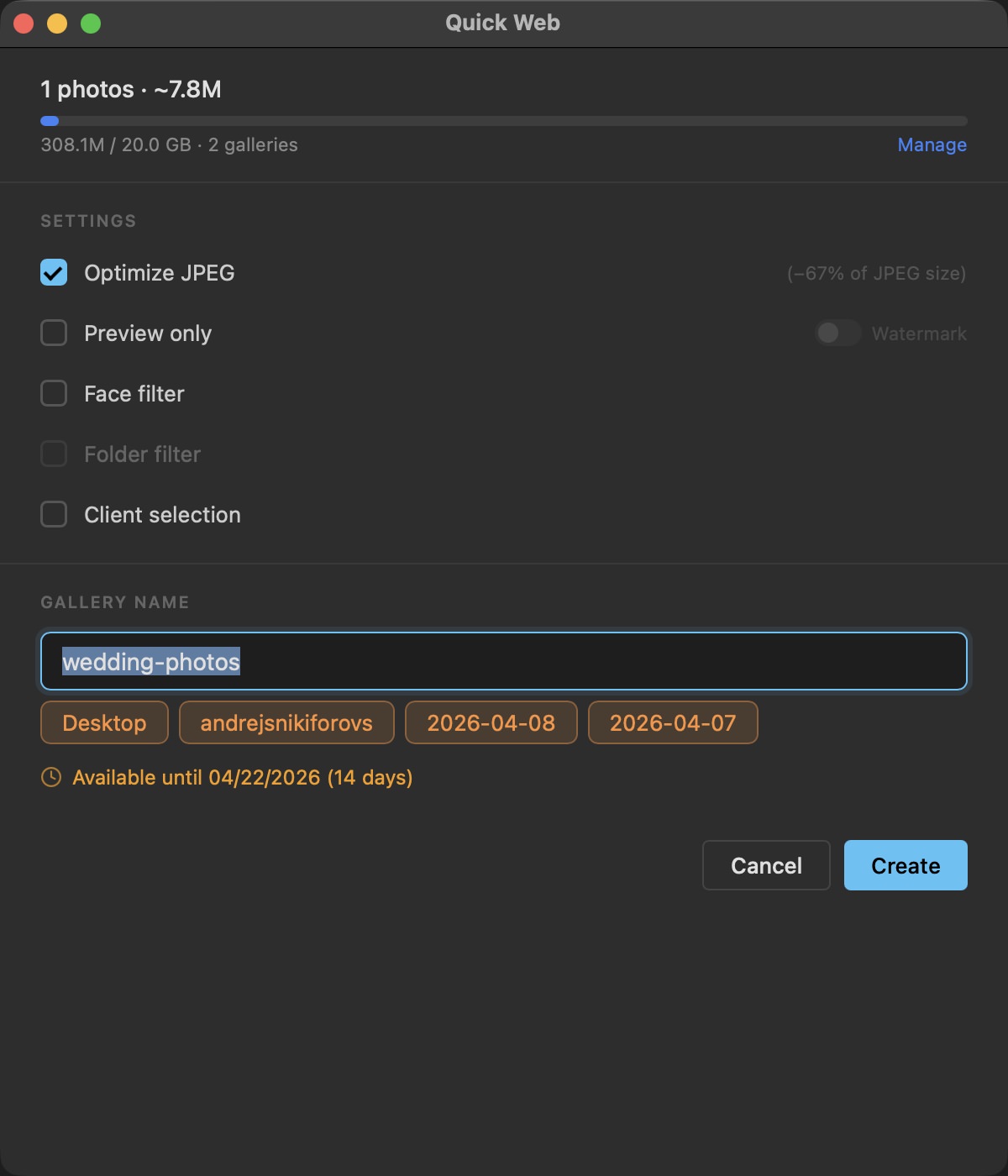
Select photos, press ⌘G (or context menu → Quick Web). PhotoWorker uploads them and creates a link.
The client opens the gallery in a browser — no registration or app needed.
Upload progress (speed in MB/s and time estimate) with the ability to cancel. After creation — a result panel with a URL copy button.
If source files have changed since the upload — PhotoWorker shows a breakdown: added, changed, deleted, missing.
Gallery settings
- Optimize JPEG — compression for fast loading (enabled by default)
- Preview only — upload only previews without full-size files
- Watermark — watermark overlay on photos
- Face filter — the client gallery will have a filter by person. Click Configure — a list of detected people with face previews opens. Click a person to exclude them from the gallery
- Folders — the client sees a button for each subfolder and can view them one at a time (available when subfolders are enabled). Click Configure — a list of subfolders with checkboxes opens, uncheck the ones you don't need in the gallery. In the Download All archive photos stay in their subfolders
- Client selection — the client can mark their favorite photos
- Quick name options — buttons from folder path segments and capture dates for quickly filling in the gallery name
The gallery is available for 14 days, after which it is automatically deleted.
Client selection
With Client selection enabled, the client sees a selection button on each photo and marks their favorites.
Next to Client selection you can set a limit — how many photos the client may select (say, 30 for retouching). The client sees “Selected: 12 of 30” and cannot pick more. The limit can also be changed on My galleries.
When done, the client presses Selection complete: you get an e-mail right away and the selection freezes. To let the client change it, use “Reopen the selection” in the gallery menu on My galleries.
When the client finishes selecting (about 10 minutes after their last pick), you get an e-mail at your license address: how many photos were selected and a link to the gallery. If the client changes the selection later, another e-mail follows. Turn the e-mails off with the checkbox at the bottom of the Web Galleries window.
To retrieve their picks: open View → Web Galleries…, click the gallery in the list, then Load selection. PhotoWorker opens the folder with the originals and selects the matching files by name.
Managing galleries
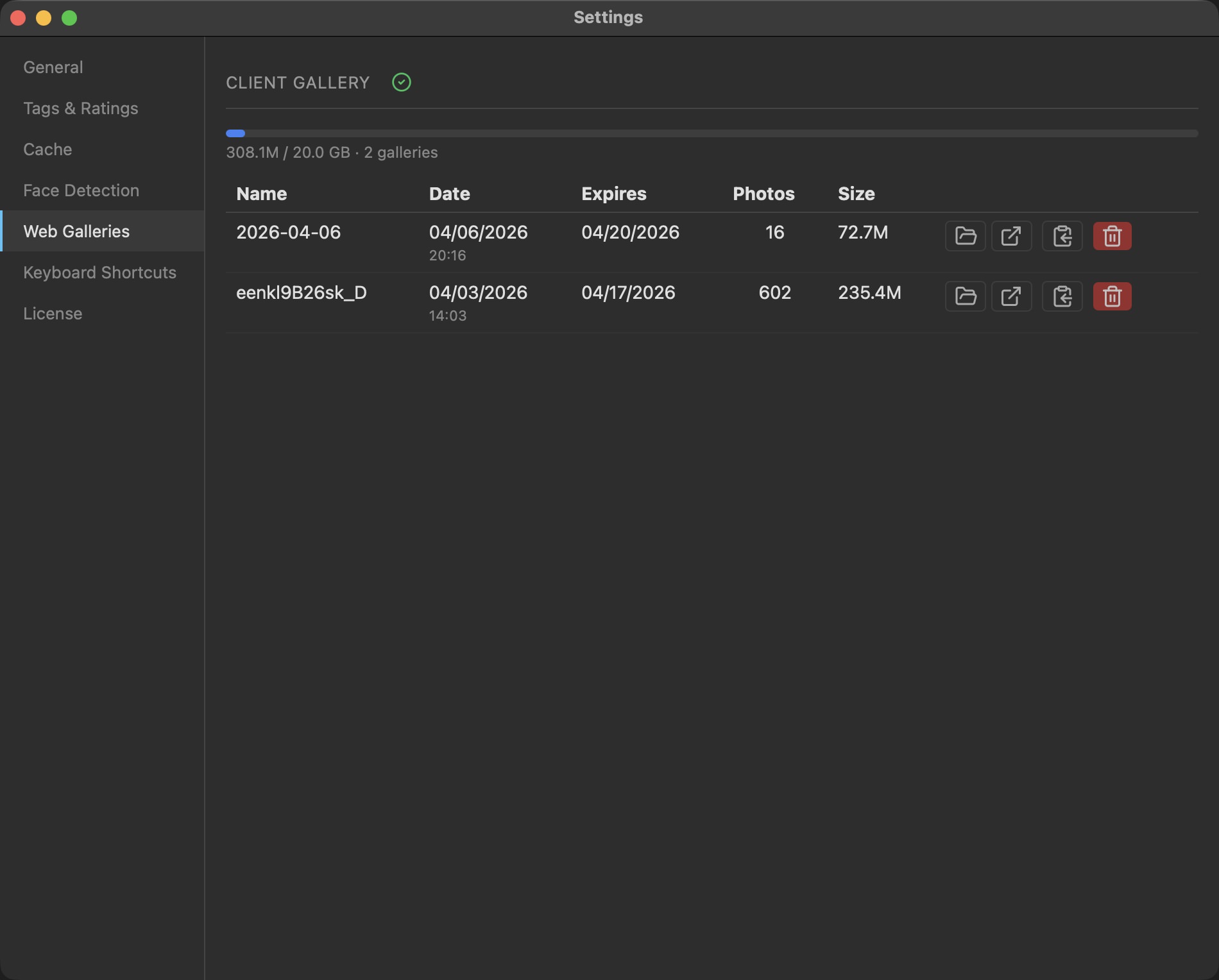
The list of all galleries is in the View → Web Galleries… window. For each gallery you can see: name, date, expiration, photo count, and size.
The list includes galleries from both Macs of your license. A gallery created on the other Mac is marked with its name: you can open it, copy the link, see the client's selection and delete it, but update it only on the Mac that has its photos.
Available actions: open the gallery in a browser, update it (add or replace photos), load the client's selection, delete. At the top — used space and available quota.
The "Web gallery" button in the main window toolbar appears if a gallery exists for the current folder; click opens details.
In the details panel (click a gallery in the list): URL copy and open buttons, download statistics (count and last download date).
Galleries on the web
The "My galleries online" button in the Web Galleries window opens gallery.photoworker.app/my — the same list in a browser, handy on a phone. Sign in with a link sent by e-mail: enter the address your license is registered to. The page shows the client's selection, downloads and expiry; you can open a gallery, copy its link or delete it. A card's Settings rename the gallery, extend it by 14 days, turn client selection on or off and reset it. Photos, watermark, preview-only and filters are changed only in PhotoWorker. Clicking the folder path opens it in PhotoWorker.